Setting Up a Stripe.com Single Payment Page for WordPress

Stripe.com handles credit card payments at 2.9% (the same as PayPal) and let’s you integrate a single payment page or popup page within your WordPress site. Stripe is setup not as a total ecommerce solution, but rather is a better fit for single payments or donations. It has the advantage over PayPal in that customers aren’t required to sign up for an acount and aren’t taken to a separate gateway to make a payment.
Another option for payment solutions for those willing to attempt to gsayPal and Stripe in terms of price, as it’s only 25 cents per transaction. Dwolla offers the simple integration of a button and a WordPress plugin as well, but it does require that customers go through a signup process.
Stripe works well and is very easy to integrate with the WP-Stripe plugin which allows for installation vis shortcode or template insert.
Stripe.com Installation for WordPress
Here we’ll cover the installation of the plugin and how to set up Stripe.com for WordPress.
Lets start within WordPress. Login to your site and navigate to Plugins. Click Add New and Search for “WP Stripe.”
Click Install > Okay > Activate Plugin

Then under the Settings tab of your WordPress admin, select WP Stripe.
Then select the WP Stripe Settings Tab.
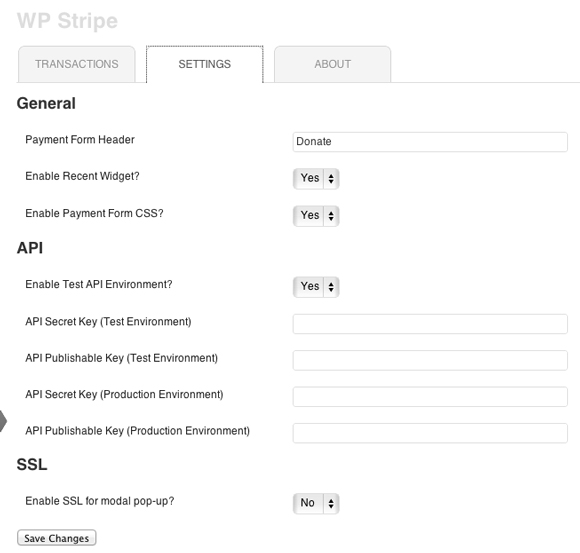
In order to start taking payments and test payments, you need to go register an account at Stripe.com.

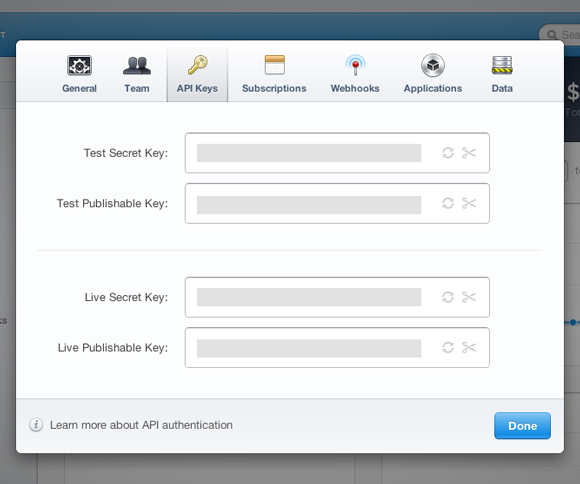
Once you’ve registered and logged in. You’ll be able to grab your API keys at this link: Stripe API Keys.
Take those API Keys (both the live and test keys) and copy/paste them into your WP Stripe settings area within your WordPress Dashboard. Then click Save Changes.
Then you want to create a new page and enter the WP Stripe short code [wp-stripe]
Publish the page and it will look something like this:

One neat thing about Stripe is that it includes a popup form so that you really don’t have to modify any CSS if you’d rather not. Unlike a heavy eCommerce cart, Stripe is a fairly lightweight solution, so other than the plugin, with this particular type of integration, all the heavy lifting is done through Stripe.com which also means better security.
To test Stripe, (highly recommended) before sending clients to the newly created payments page, use the following dummy info.
Card Number 4242424242424242
Card Month 05
Card Year 2015
CVC Number 123
After you run the test, you should see the amount of test money you sent show up both in your WP Stripe area of the WordPress admin and in the Stripe dashboard as well.
Pro tip: If you want to eliminate the optional check box that asks to display recent donations or payments in the payment popup window, simply uncheck “Enable Recent Widget?” in the WP Stripe admin area.
That covers basic setup of WP-Stripe for a WordPress website. For more advanced tutorials and documentation Stripe has a well organized Developers portal. You can find an archive of our WordPress tutorials here.
Author: Ryan Howard is a TastyPlacement alumnus who now runs a digital refinery offering WordPress designs, local search marketing, ecommerce SEO services, and social media strategy.



Hello! Do you know if they make any plugins to safeguard against
hackers? I’m kinda paranoid about losing everything I’ve worked hard
on. Any recommendations?